Building a Custom Tiptap Extension for Umbraco
This guide walks through building a real Tiptap extension for the Umbraco backoffice — a DateTime inserter that lets editors insert the current date, time, or both into a Rich Text Editor (RTE) field from a toolbar dropdown menu.
By the end you will understand:
-
How Tiptap extensions work and how to write one from scratch
-
How Umbraco's extension registry connects Tiptap to the backoffice
-
How to wire up a toolbar dropdown menu with multiple actions
-
How to register everything via a manifest bundle
Project structure
src/tiptap-extensions/
├── insert-datetime.extension.ts   # 1. The raw Tiptap extension
├── datetime.tiptap-api.ts         # 2. Umbraco bridge — registers the extension with the editor
├── datetime.tiptap-toolbar-api.ts # 3. Umbraco toolbar action handler
└── manifest.ts                    # 4. Manifest — tells Umbraco these extensions exist
These four files map to four distinct concepts. Each is explained in detail below.
Step 1 — The Tiptap extension (insert-datetime.extension.ts)
This is a plain Tiptap extension with no Umbraco dependency. It can be used in any Tiptap editor, inside or outside Umbraco.
Declaring options
export interface InsertDateTimeOptions {
  format: 'date' | 'time' | 'datetime' | 'iso';
}
Extension.create<T>() accepts a generic type parameter for options. Declaring a typed interface makes this.options fully type-safe throughout the extension.
Extending the Tiptap command type
declare module '@tiptap/core' {
  interface Commands<ReturnType> {
    insertDateTime: {
      insertDateTime: (format?: 'date' | 'time' | 'datetime' | 'iso') => ReturnType;
    };
  }
}
This is a TypeScript module augmentation. It adds insertDateTime to Tiptap's built-in Commands interface so that editor.commands.insertDateTime() and editor.chain().focus().insertDateTime().run() are fully typed everywhere.
addOptions
addOptions() {
  return {
    format: 'datetime',
  };
},
Returns the default options. These are merged with any options passed to InsertDateTime.configure({ format: 'date' }) when the extension is registered with an editor.
addCommands
addCommands() {
  const defaultFormat = this.options.format;

  return {
    insertDateTime:
      (format = defaultFormat) =>
      ({ commands }) => {
        // build formattedDateTime string from `format`...
        return commands.insertContent(formattedDateTime);
      },
  };
},
A command factory in Tiptap follows a curried pattern:
commandName(userArgs) => ({ editor, commands, tr, ... }) => boolean
The outer function receives the arguments the caller passes (here, format). The inner function receives the editor context and performs the actual work, returning true on success.
Why capture this.options.format before the arrow function? TypeScript's noImplicitThis rule cannot infer the type of this inside the default-parameter expression of the nested arrow function. Capturing the value into a const before the arrow function sidesteps the error cleanly.
addKeyboardShortcuts
addKeyboardShortcuts() {
  return {
    'Mod-Shift-d': () => this.editor.commands.insertDateTime('date'),
    'Mod-Alt-t':   () => this.editor.commands.insertDateTime('time'),
    'Mod-Alt-d':   () => this.editor.commands.insertDateTime('datetime'),
  };
},
Mod resolves to Ctrl on Windows/Linux and Cmd on macOS. Tiptap uses Prosemirror's keymap syntax. Each handler calls our own command, keeping the logic in one place.
Step 2 — The Umbraco extension bridge (datetime.tiptap-api.ts)
import { UmbTiptapExtensionApiBase } from '@umbraco-cms/backoffice/tiptap';
import { InsertDateTime } from './insert-datetime.extension';

export default class UmbTiptapDateTimeExtensionApi extends UmbTiptapExtensionApiBase {
    getTiptapExtensions = () => [InsertDateTime];
}
Umbraco's RTE does not accept raw Tiptap extensions directly. Instead it uses an API class as an adapter. UmbTiptapExtensionApiBase is the abstract base class provided by Umbraco that you must extend.
The only required method is getTiptapExtensions(), which returns the array of Tiptap Extension | Mark | Node objects to load into the editor. Umbraco calls this when building the editor instance.
This class is loaded lazily via the manifest (see Step 4), so it is only fetched when the editor that has this extension enabled actually renders.
default export is required. Umbraco's extension loader expects a default export from the file pointed to by the api manifest property.
Step 3 — The toolbar action handler (datetime.tiptap-toolbar-api.ts)
import { UmbTiptapToolbarElementApiBase } from '@umbraco-cms/backoffice/tiptap';
import type { Editor } from '@umbraco-cms/backoffice/tiptap';
import type { InsertDateTimeOptions } from './insert-datetime.extension.js';

export default class UmbTiptapToolbarDateTimeExtensionApi extends UmbTiptapToolbarElementApiBase {
    override execute(editor?: Editor, ...args: Array<unknown>): void {
        const item = args[0] as { data?: InsertDateTimeOptions['format'] } | undefined;
        editor?.chain().focus().insertDateTime(item?.data ?? 'datetime').run();
    }
}
UmbTiptapToolbarElementApiBase is the base class for toolbar buttons and menus. You must implement execute, which Umbraco calls when the user clicks a toolbar item.
Why ...args?
The base class signature is:
abstract execute(editor?: Editor, ...args: Array<unknown>): void;
When the toolbar item uses kind: 'menu', Umbraco passes the selected menu item as the first argument. Spreading args and reading args[0] is the correct way to receive it while still satisfying the abstract method signature.
The menu item shape
Each item in the manifest's items array has a data property. Umbraco passes the entire item object to execute, so args[0].data gives us the value we defined — in this case the format string ('date', 'time', 'datetime', or 'iso').
Step 4 — The manifest (manifest.ts)
The manifest is how Umbraco discovers and registers extensions. It is a plain JavaScript object — no class, no decorator.
export const manifests: Array<UmbExtensionManifest> = [
  {
    type: 'tiptapExtension',
    alias: 'My.Tiptap.DateTime',
    name: 'My DateTime Tiptap Extension',
    api: () => import('./datetime.tiptap-api.js'),
    meta: {
      icon: 'icon-alarm-clock',
      label: 'DateTime',
      group: '#tiptap_extGroup_formatting',
    },
  },
  {
    type: 'tiptapToolbarExtension',
    kind: 'menu',
    alias: 'My.Tiptap.Toolbar.DateTime',
    name: 'My DateTime Tiptap Toolbar Extension',
    api: () => import('./datetime.tiptap-toolbar-api.js'),
    forExtensions: ['My.Tiptap.DateTime'],
    items: [
      { label: 'Date',       data: 'date',     appearance: { icon: 'icon-calendar' } },
      { label: 'Time',       data: 'time',      appearance: { icon: 'icon-time' } },
      { label: 'Date & Time', data: 'datetime', appearance: { icon: 'icon-alarm-clock' }, separatorAfter: true },
      { label: 'ISO',        data: 'iso',       appearance: { icon: 'icon-code' } },
    ],
    meta: {
      alias: 'datetime',
      icon: 'icon-calendar-alt',
      label: 'DateTime',
    },
  },
];
Two manifest types, two purposes
|
Type |
Purpose |
|---|---|
|
tiptapExtension |
Registers the extension with the editor. Appears in the Extensions tab of a Rich Text Editor data type so editors can enable/disable it. |
|
tiptapToolbarExtension |
Adds a button or menu to the Toolbar configuration of the data type. Only available when the parent tiptapExtension is enabled. |
Key properties
tiptapExtension
|
Property |
Description |
|---|---|
|
alias |
Unique identifier — used as the key in forExtensions |
|
api |
Dynamic import returning the default-exported bridge class |
|
meta.group |
Localisation key that groups the extension in the UI. Valid values: #tiptap_extGroup_formatting, #tiptap_extGroup_interactive, #tiptap_extGroup_media, #tiptap_extGroup_html |
Do not add kind to a tiptapExtension. Only tiptapToolbarExtension uses kind. Adding it to tiptapExtension will prevent the extension from appearing in the Data Type editor.
tiptapToolbarExtension
|
Property |
Description |
|---|---|
|
kind |
'button' for a single action, 'menu' for a dropdown with multiple items |
|
forExtensions |
Array of tiptapExtension aliases — the toolbar item only appears when all listed extensions are enabled |
|
items |
(menu only) Array of { label, data, appearance?, separatorAfter? } objects passed to execute on selection |
|
api |
Dynamic import returning the default-exported toolbar handler class |
Step 5 — Wiring it all into the bundle
Umbraco discovers extensions by scanning App_Plugins folders for umbraco-package.json files. The package registers a single bundle entry point:
{
  "extensions": [
    {
      "type": "bundle",
      "alias": "MediaWiz.Extension.Bundle",
      "js": "/App_Plugins/MediaWizExtension/media-wiz-extension.js"
    }
  ]
}
The bundle loader imports the JS file at runtime and calls registerMany() on every array it finds exported from the module. The bundle entry point (bundle.manifests.ts) collects and re-exports all manifest arrays from across the project:
import { manifests as tiptapExtensions } from './tiptap-extensions/manifest.js';

export const manifests: Array<UmbExtensionManifest> = [
  // ...other manifests
  ...tiptapExtensions,
];
Vite builds this into a single media-wiz-extension.js file with lazy chunks for each api import:
// vite.config.ts
rollupOptions: {
  external: [/^@umbraco/], // Umbraco packages are provided by the backoffice at runtime
},
Marking @umbraco/* as external keeps the bundle small — the backoffice provides those modules via import maps and they do not need to be bundled into your output.
Enabling the extension in Umbraco
-
Build the client: npm run build
-
Run the Umbraco site
-
Go to Settings → Data Types and open (or create) a Rich Text Editor data type
-
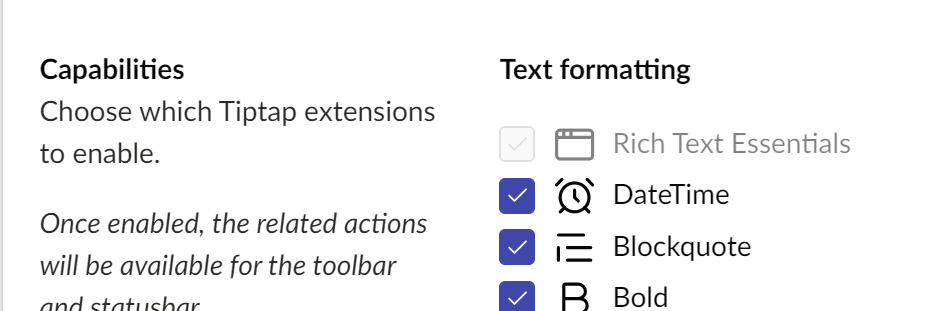
Under the Extensions tab, enable DateTime
-
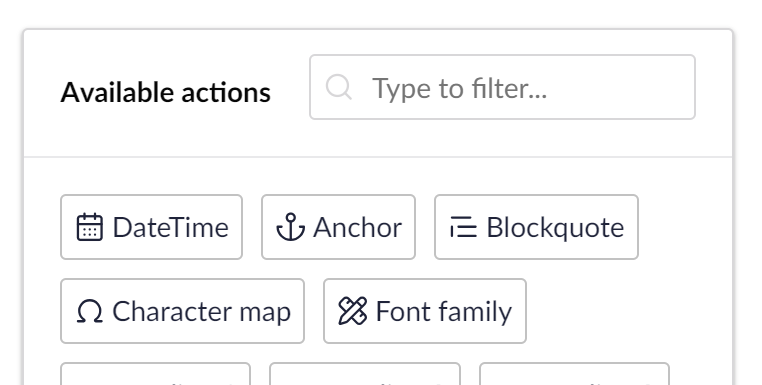
Under the Toolbar tab, drag the DateTime button into a toolbar row
-
Save the data type
The toolbar will now show a DateTime dropdown with four options: Date, Time, Date & Time, and ISO.
Common pitfalls
|
Problem |
Cause |
Fix |
|---|---|---|
|
Extension does not appear in the Extensions tab |
kind was set on the tiptapExtension manifest |
Remove kind — it only belongs on tiptapToolbarExtension |
|
Toolbar item does not appear |
forExtensions alias does not match the tiptapExtension alias exactly |
Check the alias is identical in both manifests |
|
api class is not loaded |
Used js: instead of api: in the manifest |
Use api: () => import(...) for both extension types |
|
this implicitly has type any |
Used this.options inside a nested arrow function default parameter |
Capture this.options.x into a const before the arrow function |