Our.community.Tags.Popular
A custom property editor for Umbraco 17 that displays the most-used tags in a named group and lets editors multi-select them to populate a sibling Tags property on the same content or media node — all without leaving the editing screen.
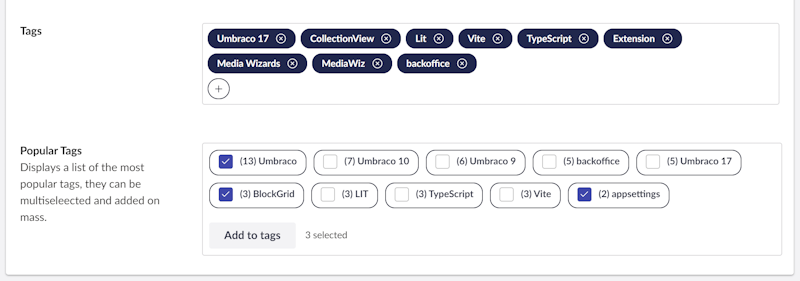
What it does
The Common Tags property editor solves a common editorial problem: Umbraco's built-in Tags property only lets editors type tag names freehand. There is no browser of existing tags in the same group to pick from. This package adds that missing picker.
When added to a Document Type alongside a standard Tags property it will:
Fetch all tags in the configured group, sorted by usage count (most-tagged nodes first).
Display them as a checkbox list so editors can multi-select any combination.
On "Add to list", append the selected tags to the sibling Tags property and save/republish the node automatically.
Tags are loaded via a direct query against Umbraco's cmsTags and cmsTagRelationship tables so the list always reflects the live tag state, including up-to-date usage counts.
Requirements
Requirement | Version |
|---|---|
Umbraco CMS | 17.x (net10.0) |
.NET SDK | 10.0+ |
Installation
.NET CLI
dotnet add package Our.community.Tags.Popular
Package Manager Console
Install-Package Our.community.Tags.Popular
PackageReference
<PackageReference Include="Our.community.Tags.Popular" Version="x.x.x" />
That's all that's needed. The compiled backoffice JavaScript is bundled inside the NuGet package and served as a static web asset. Umbraco discovers the property editor automatically via the umbraco-package.json included in the package — no Startup.cs changes or manual asset build steps are required.
The
OurcommunityTagsPopularApiComposerruns automatically on startup and registers the backoffice API and its Swagger document.
Setting up the Data Type
In the Umbraco backoffice go to Settings → Data Types → Create.
Select Common Tags as the property editor.
Configure the three settings:
Setting | Required | Description |
|---|---|---|
Tag Control | Recommended | Alias of the Tags property on the same Document Type that will receive the selected tags (e.g. |
Number of Tags | Optional | Maximum number of tags to show in the picker list. Defaults to 10. |
Group Override | Optional | Hard-code the tag group name to load (e.g. |
Tip: You only need one of Tag Control or Group Override. Use Tag Control when the tag group changes per content type. Use Group Override when you always want a specific group regardless of which Tags property is involved.
Adding the property editor to a Document Type
Open the Document Type in Settings → Document Types.
Add a new property and select your Common Tags Data Type.
Add a second property using the standard Tags Data Type (this is the property that stores the actual tags). Set its alias to whatever you entered in Tag Control above.
Save and re-open a content node of that type.
The Common Tags picker appears directly on the content editing screen. Editors check the tags they want, then press Add to list. The Tags property is updated and the node is saved.
How group resolution works
groupOverride set?
  └─ YES → use that group name directly
  └─ NO  → read tagParent alias from config
              └─ look up the Tags Data Type for that property
                   └─ read the "Group" field from its configuration
                        └─ use that group name
This means a single Common Tags Data Type can serve multiple Document Types without needing a separate Data Type per content type — as long as each Document Type's Tags property is configured with the correct group.